
Simple Scan - PDF scanner App
Easy inc.Business
4.7451.00 Reviews
- Version
- 5.1.4
- Installs
- 50.00K
- Age Rating
- Everyone
Screenshots
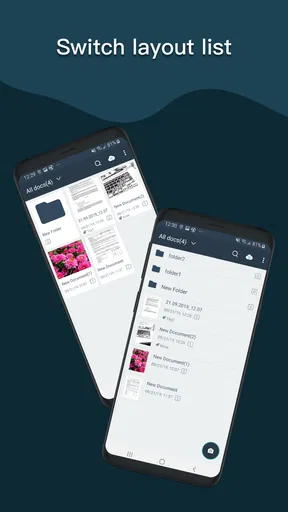
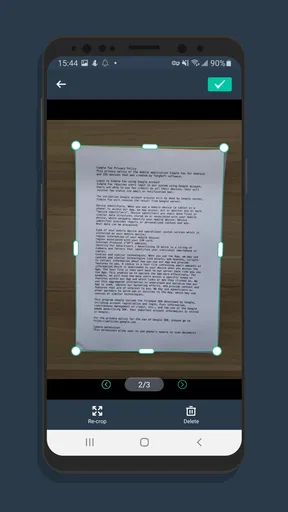
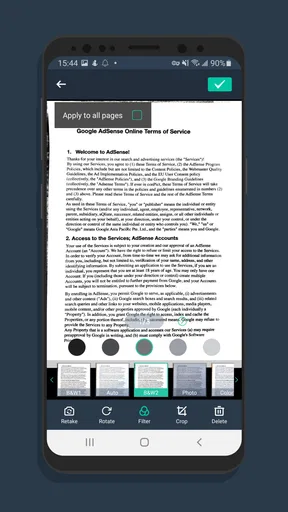
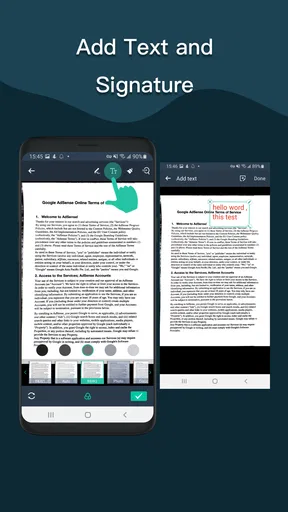
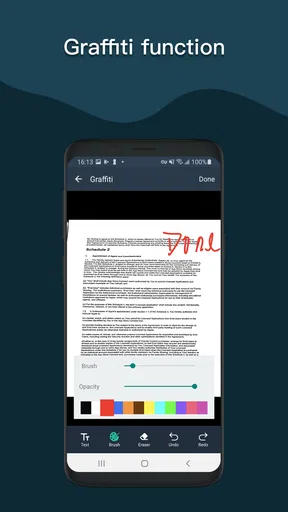
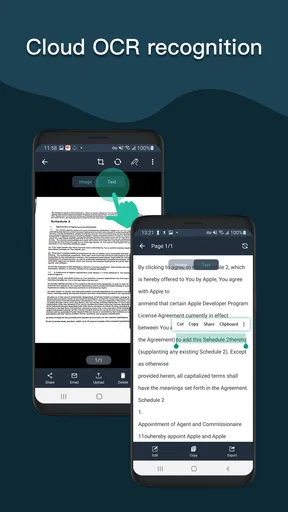
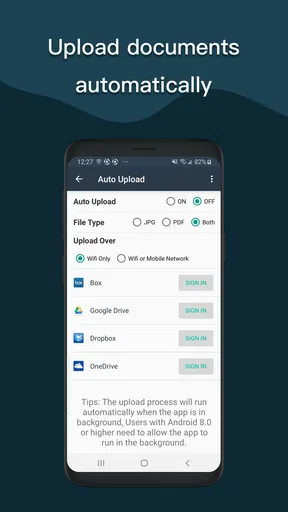
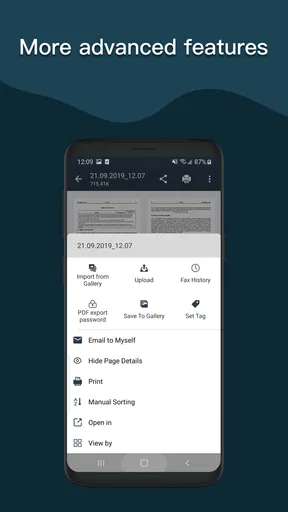
Our Review of Simple Scan - PDF scanner App
 Analysis by Appyee
I tend to judge a document scanner by what happens when I am in a hurry, not by how impressive its feature list looks. Simple Scan - PDF scanner is aimed at that exact moment: turning paper into a professional-looking PDF from a phone, with SD card support and the option to send a fax. I found its appeal easy to understand. It is a business app from Easy inc. that keeps the main task focused instead of trying to become a complete office suite.
The app has a 4.7 average from around 3.8 thousand ratings, with more than 50 thousand installs. Those figures suggest that it has found a useful audience among people who need a straightforward scanning tool rather than a complicated document-management system. It is rated for Everyone, and the listed minimum operating system is Android 7.0, which makes it accessible on a wide range of older Android phones.
There is one important point to consider before installing: the listed price is $39.99, while in-app purchases range from $0.99 to $79.99 per item. That makes this a purchase decision worth thinking through, especially because many phone owners already have access to basic scanning through a cloud-storage app or a multifunction printer. My experience is that Simple Scan makes the most sense when scanning is a regular part of your work and you value a dedicated workflow.
Where connectivity changes the scanning experience
The first thing I noticed is that scanning itself and everything that happens after scanning are not always the same kind of task. Capturing a page is a phone activity. Sending that document by fax, moving it to another device, or sharing it with a colleague introduces a connectivity step. That distinction matters because the app’s usefulness depends not only on how quickly it creates a PDF, but also on what you plan to do with that PDF next.
For a simple receipt, signed form, or handwritten note, I can imagine using the camera, checking the result, and keeping the file ready for later. When the destination is another person or a fax service, the workflow becomes more deliberate. I would prepare the document first, inspect every page, and only then attempt the connected action. That habit prevents a poor scan from becoming a poor attachment or an unreadable fax.
The fax option is particularly relevant for small offices and businesses that still exchange paperwork this way. It gives the app a more practical business angle than a scanner that only saves images. I would not treat the fax function as a reason to skip the preview stage, though. A mobile camera can capture shadows, bent corners, or faint text, and connectivity cannot correct a bad original scan.
Another useful distinction is the SD card support. It gives the app a storage-oriented role for compatible Android devices, which can be valuable when a phone has limited internal space or when scanned documents need to remain available on removable storage. I would still organize files carefully, using clear names and folders, because a large collection of anonymous PDFs becomes difficult to search no matter which storage location is used.
What happens when the network is not cooperating
I would approach the app with a two-stage routine: capture and inspect first, then share or fax. This is a small change, but it makes the experience more dependable. If a network-related action fails, the important work of photographing the pages and preparing the PDF has already been completed. I can retry the outward-facing step instead of starting the entire document again.
That workflow is also useful in places where reception changes from room to room. A person visiting a client, working in a warehouse, or moving between office floors may be able to scan at one moment and send at another. Rather than assuming that every action will happen instantly, I would treat the created PDF as the stable handoff point. The app works best when I separate document creation from document delivery.
For time-sensitive paperwork, I would avoid waiting until the last second to send a fax or share a file. A quick test with a noncritical document can show whether the chosen connected action behaves as expected in a particular setting. This is not glamorous advice, but it is the kind of habit that prevents a signature deadline from turning into a frantic rescan.
Using it in realistic mobile situations
The strongest use case is a person who receives paper away from a desk. Imagine a contractor meeting a customer at a property. The customer signs a form, and the contractor needs a readable copy for the office. With Simple Scan, the contractor can capture the pages immediately, review the PDF while the details are still fresh, and prepare it for sending rather than carrying the paperwork around for the rest of the day.
Another example is a small business owner handling supplier invoices. Instead of letting papers accumulate in a bag, the owner can scan each invoice when there is a quiet moment, store the documents on a suitable card if that fits the phone setup, and send the finished files when the connection is reliable. The advantage is not just speed; it is reducing the gap between receiving paperwork and putting it into a usable digital form.
Students and renters could also find a practical role for it when they need to preserve signed documents, notices, or forms. However, I would be more cautious with highly sensitive paperwork. A phone scanner is convenient, but convenience should not replace a sensible storage routine. I would avoid leaving confidential PDFs with vague filenames, and I would check where the finished files are being kept before sharing them.
The mobile format has a few natural limitations. A phone camera is less comfortable than a flatbed scanner for a thick stack of pages, a book with a curved spine, or documents that must be captured with exact archival consistency. Holding the phone directly above a page can also create alignment problems. For occasional paperwork, that trade-off is acceptable. For large batches every day, a desktop scanner with an automatic feeder may be the better tool.
Getting cleaner PDFs without extra work
My most useful practical tip is to prepare the scene before opening the scanner. A flat surface, even lighting, and a clear view of all page edges make a bigger difference than repeatedly retaking a badly arranged document. I would remove clips when possible, smooth folded corners, and keep the phone parallel to the page. These steps reduce the chance that important text disappears near an edge.
I would also review pages in order before sending anything. This matters when a document has several sheets, because a missing page can be harder to notice after the file has already left the phone. A quick page-by-page check catches upside-down sheets, duplicate captures, and pages where a shadow crosses a signature line.
For receipts or narrow slips, I would leave a little space around the paper instead of framing it so tightly that an edge is cut off. For forms, I would prioritize the fields and signatures over making the page look perfectly cropped. A slightly wider border is usually less damaging than losing a date or an initial.
These habits also make connected use safer. When a fax or shared PDF is sent, the recipient gets a document that has already been checked for completeness. The app’s value is therefore not only the camera capture; it is the combination of capture, PDF preparation, storage choice, and delivery.
Recovering from common mistakes
Mobile scanning rarely fails in only one way. Sometimes the image is blurry because the phone moved. Sometimes the page is readable but poorly framed. Sometimes the document is fine, yet sending it becomes the problem. I find it useful to treat each issue separately rather than assuming the whole job has failed.
If the page is blurry, I would retake it immediately while the paper is still in front of me. If the framing is wrong, I would correct the phone position and lighting before trying again. If the PDF looks complete but the transfer or fax step does not work, I would preserve the prepared file and retry the delivery later. The key recovery principle is to avoid discarding a good scan just because the next step is temporarily inconvenient.
SD card support adds another recovery consideration. Removable storage can be helpful, but it also means I would check that the card is properly available before beginning a long batch. For important work, I would not rely on a single copy in one location. After scanning, I would make sure the document has reached its intended destination or has been copied somewhere I can access again.
There is also a human error that no scanner can solve: sending the wrong document. I would use descriptive filenames that include the client, purpose, or month, depending on the situation. This is especially important when several scans are created in one session. A clear naming habit reduces mistakes when selecting a PDF for faxing or sharing.
When a scan is rejected by a recipient, I would first inspect readability rather than blaming the connection. Small text, pale ink, and shadows can survive a quick glance on a phone but become obvious on a larger display. If the content is business-critical, I would compare the PDF with the original paper before sending it again. That extra check is worthwhile when the app is being used for contracts, invoices, or official forms.
Being careful with data and storage
Scanning turns physical information into a portable file, which is convenient but also changes how easily that information can be copied or forwarded. I would be especially careful with identity documents, financial paperwork, medical forms, and signed agreements. The app is suitable for creating PDFs, but the responsible part of the workflow continues after the scan is complete.
I would use the SD card option when it solves a real storage problem, not simply because it is available. Removable storage can make files easier to move between compatible devices, but it can also be misplaced. If the phone is shared or the card is removed, the document may no longer be where I expect it to be. A consistent storage plan is more important than choosing internal or removable storage by habit.
Data-conscious use also means avoiding unnecessary duplicates. A failed send does not always require a new scan. Keeping one checked PDF and retrying the delivery step is cleaner than creating several nearly identical copies. This saves space and makes it easier to identify the correct version later.
I would also think about the recipient before using the fax feature. Faxing can be useful when a business specifically requires it, but it is not automatically the best route for every document. If the recipient accepts a secure digital file, that may be simpler. If fax is mandatory, the app’s built-in support can reduce the need to move the document through several separate tools.
Who should choose this app?
I would recommend Simple Scan to someone who regularly handles paper while away from a desk and wants scanning, PDF creation, SD card support, and fax-related work in one focused app. It is particularly appealing to freelancers, field workers, small business owners, and office staff who need to turn signed or printed pages into usable documents during the day.
The app is also a reasonable fit for people using older Android hardware, since Android 7.0 is the minimum operating system listed. The Everyone age rating makes it broadly approachable, although the business-oriented workflow is more relevant to adults managing paperwork than to casual users looking for a photo utility.
I would skip it if I only scan a page a few times a year and already have a satisfactory scanner inside another app. The $39.99 price makes casual use harder to justify, particularly when free or bundled alternatives may cover occasional receipts and forms. I would also look elsewhere if I need high-volume desktop scanning, automatic paper feeding, advanced document recognition, or a heavily integrated cloud-office system. Those needs belong to a different class of tool.
The in-app purchase range, from $0.99 to $79.99 per item, is another reason to review the purchase flow carefully before committing to a regular workflow. I would want to understand which parts of my intended use require additional spending and whether the total cost still makes sense compared with the alternatives already available to me.
How it compares with familiar alternatives
Compared with using a multifunction printer, Simple Scan wins on mobility. I can work at the customer’s location, in a vehicle parked safely away from traffic, or at a temporary desk without finding a dedicated machine. The printer remains stronger for large stacks, consistent alignment, and long scanning sessions.
Compared with a general cloud-storage scanner, this app’s business identity is clearer because PDF documents, SD card support, and faxing are central to the experience. A cloud-storage tool may be more convenient for people already organizing every file in one online workspace. Simple Scan is more attractive when I want a focused scanner that does not force the entire process through a broader productivity ecosystem.
Compared with taking ordinary photos of paperwork, it offers a more suitable document workflow. A photo can preserve a page, but a PDF is easier to treat as a finished business document. That difference becomes important when several pages belong together or when the file is being prepared for formal delivery.
Still, a specialized scanner is not automatically superior in every situation. If my priority is collaboration, searchable archives, or integration with an existing office platform, another app may save more time overall. Simple Scan is strongest when the problem is “I need a clean PDF from this paper now,” not “I need a complete document-management system.”
My connectivity verdict
After looking at the whole workflow, I see Simple Scan - PDF scanner as a practical mobile business tool whose connected actions are most useful when handled in stages. Capture the paper, check the PDF, choose the storage location, and only then send or fax it. That sequence keeps network-related friction from forcing unnecessary rescans.
Its real advantage is convenience at the point where paper enters a mobile workday. The SD card support gives storage-conscious users another option, while fax support makes it more relevant to businesses that still depend on that channel. The trade-off is the cost, plus the fact that camera scanning cannot replace a proper high-volume scanner for every job.
Simple Scan is currently at version 5.1.4 and comes from Easy inc. I would recommend it when dependable mobile document preparation is a recurring need and the listed price fits that need. I would not recommend buying it merely for occasional receipt capture. For the right user, the best workflow is to create and verify the PDF before relying on connectivity; that is where this app feels most sensible and least frustrating.
Verdict
Strengths of Simple Scan - PDF scanner App
- Quickly scans documents using the phone camera
- Automatically detects page edges for cleaner scans
- Supports multi-page documents in a single PDF
- Offers useful image adjustments for readability
- Simple interface is easy for first-time users
Limitations of Simple Scan - PDF scanner App
- Free version may include ads or feature restrictions
- OCR accuracy can vary with handwriting and poor lighting
- Large scan batches can use considerable storage
- Some export or sharing options may require payment
- Camera quality strongly affects the final document clarity
Similar Picks in This Category
View All
LinkedIn: Community & Network
LinkedIn3.8

Zoom Workplace
zoom.com4.1

Microsoft Teams
Microsoft Corporation4.6

Meta Business Suite
Meta Platforms, Inc.4.6

Webex Meetings
Cisco Systems, Inc.4.5

TeamViewer Remote Control
TeamViewer4.4
Frequently Asked Questions
What is Simple Scan - PDF Scanner used for?
Simple Scan - PDF Scanner turns your Android or iOS device into a portable document scanner. You can capture receipts, notes, contracts, forms, book pages, and other paper documents with the phone camera, then save them as digital files. It is particularly useful for quickly creating PDFs when you are away from a traditional scanner or need to send paperwork online.
Does Simple Scan - PDF Scanner create clear and professional-looking documents?
In my testing, the app can produce clean scans when the page is placed on a flat, well-lit surface and the camera is held steadily. Automatic edge detection and image enhancement help improve readability, while cropping and filter options can make text stand out. However, results still depend on your camera, lighting, paper condition, and how carefully you position the document.
Can I scan multiple pages and combine them into one PDF?
Yes, Simple Scan - PDF Scanner is designed for more than single-page captures. You can scan several pages in sequence and organize them into one document before exporting it as a PDF. This is convenient for contracts, school assignments, invoices, and other multi-page files. Before saving, review the page order and remove any blurry or duplicated images.
Can scanned documents be shared or exported from the app?
After scanning, documents can generally be saved and shared through the options available on your device, such as email, messaging apps, cloud storage, or other compatible applications. PDF export makes the files easier to open on different devices and send to businesses or institutions. Available sharing destinations may vary depending on your operating system and installed apps.
Is Simple Scan - PDF Scanner free to use, and are there any limitations?
The app may be available to download for free, but some versions can include advertisements, optional paid features, or restrictions on advanced tools and document management. The exact conditions may differ between Android and iOS and can change with updates. Check the store listing and in-app purchase information before downloading if you need unlimited scans or an ad-free experience.
